01Find your frame
Open tovinoptical.com in English. Choose a category, search for a model if needed, then click its photograph. Use Show more frames to browse the rest of a category.
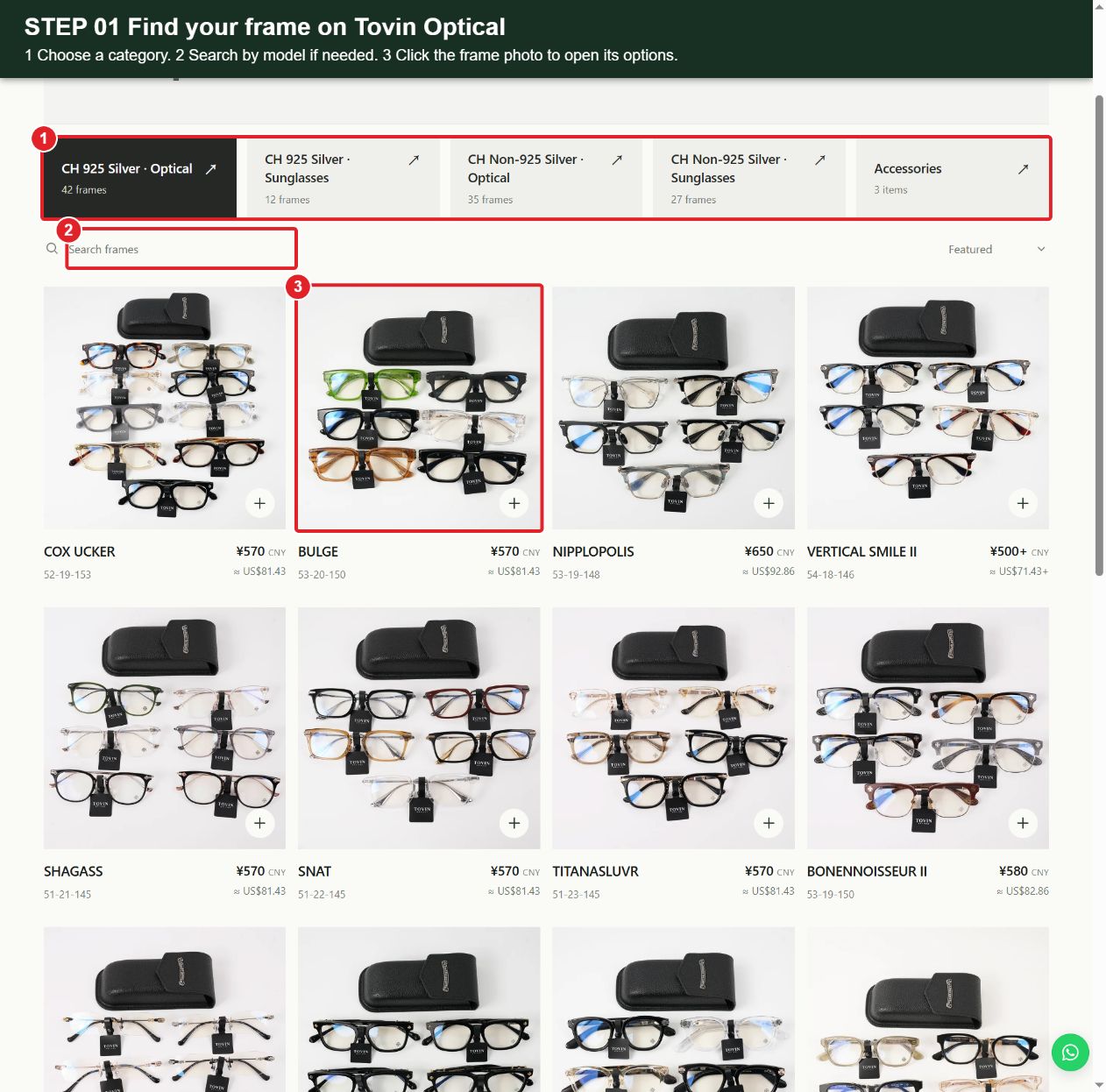 ↓ Follow the numbered red highlights. Open the image to zoom in.
02Choose colour and purchase type
Select the exact colour shown in the photos. Select Frame + lenses, then Continue to lenses. To buy a frame without prescription lenses, select Frame only and Add to cart instead.
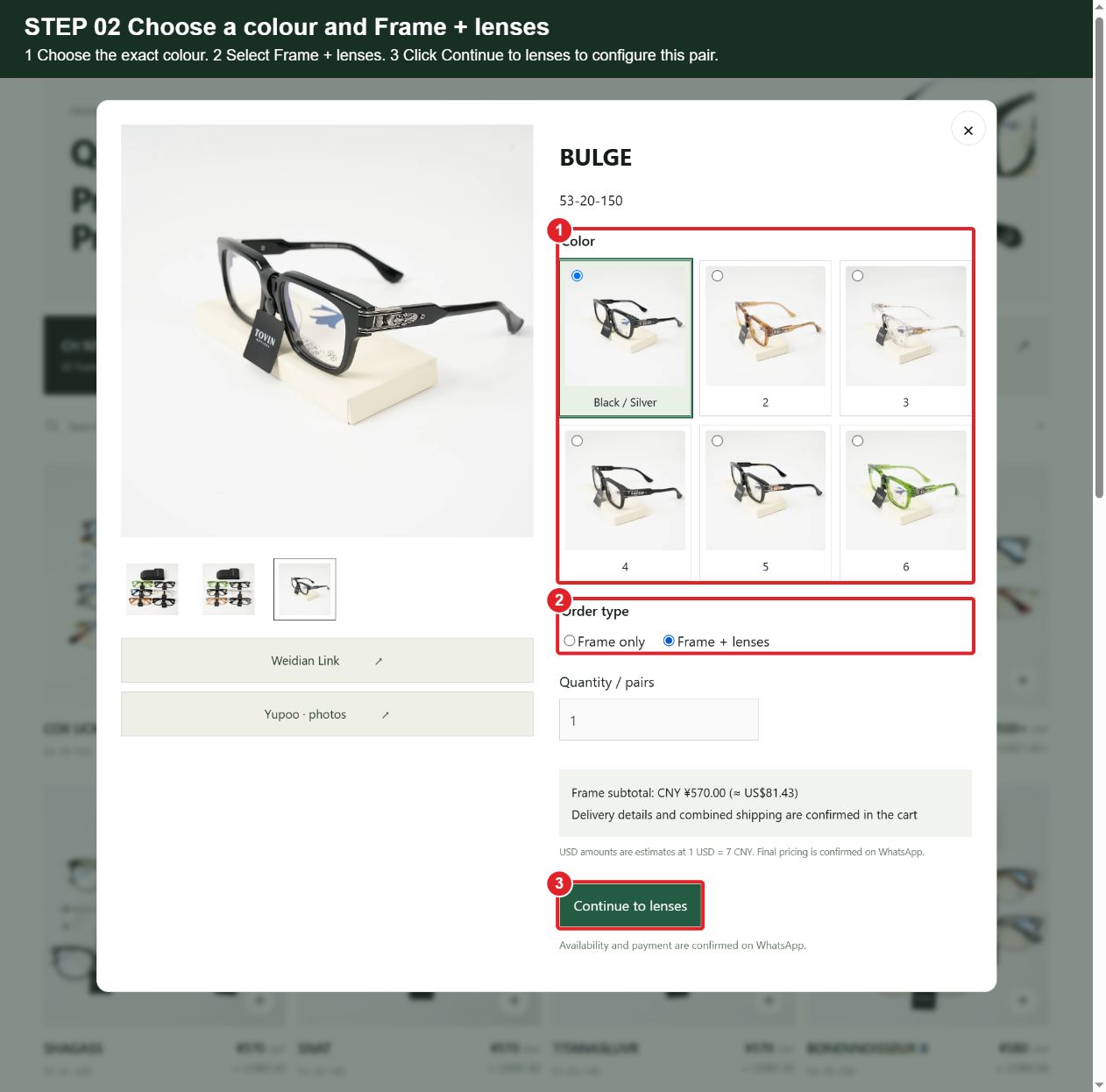 ↓ Follow the numbered red highlights. Open the image to zoom in.
03Select the lens type
Choose Single vision, Progressive or Non-prescription, then Enter Prescription. The following example uses Single vision. The available fields and lens choices depend on your selection.
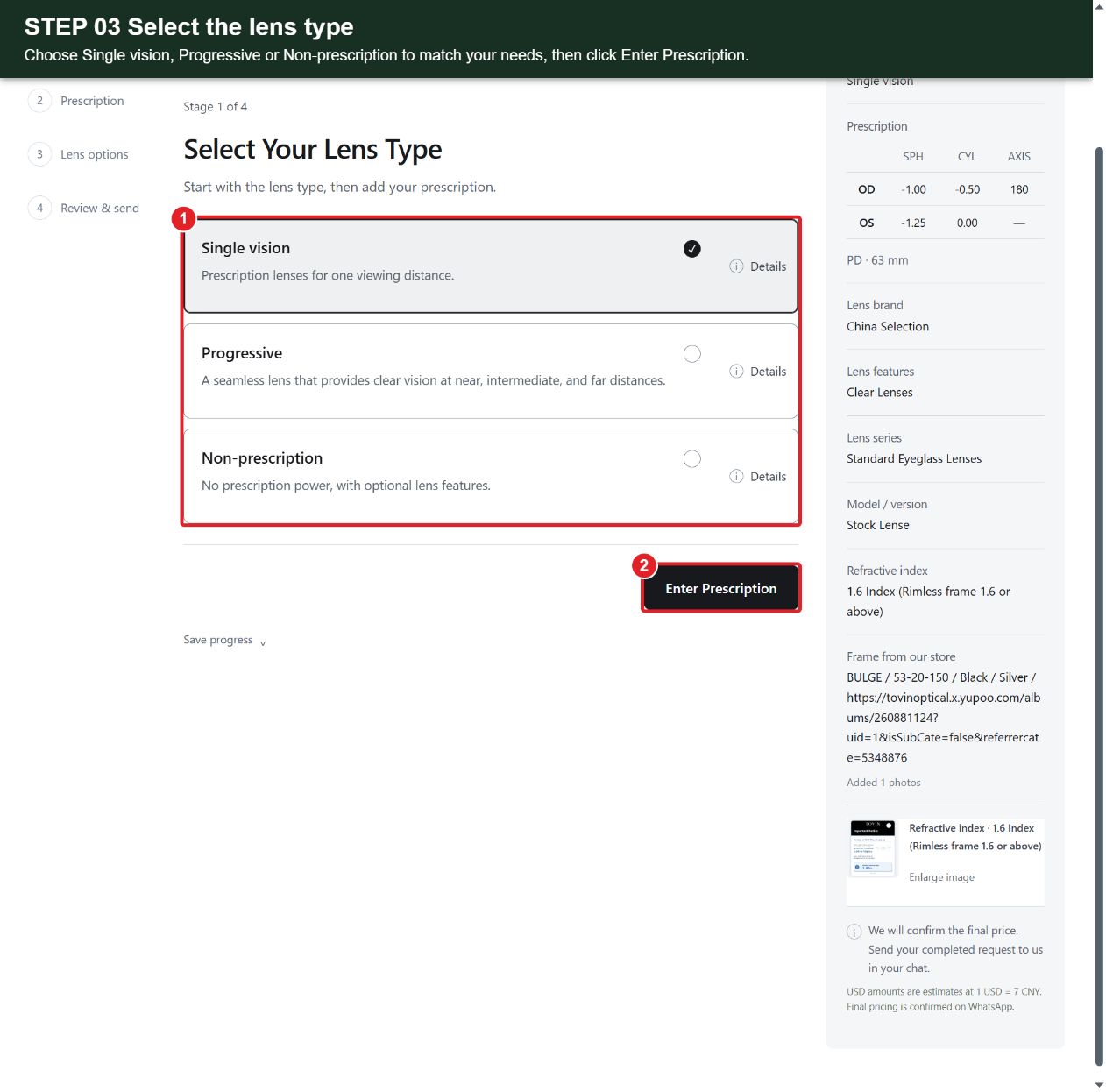 ↓ Follow the numbered red highlights. Open the image to zoom in.
04Enter your own prescription and PD
Copy the values for OD (right eye) and OS (left eye) from your prescription. Preserve every plus or minus sign. Enter SPH, CYL and AXIS where applicable, then PD in millimetres. If you have separate right/left PD values, tick the two-PD option. Complete any ADD or prism fields shown for your prescription. Click Next Step. The numbers in these screenshots are demonstration data: do not copy them for your order. If anything is missing or unclear, ask our team before submitting.
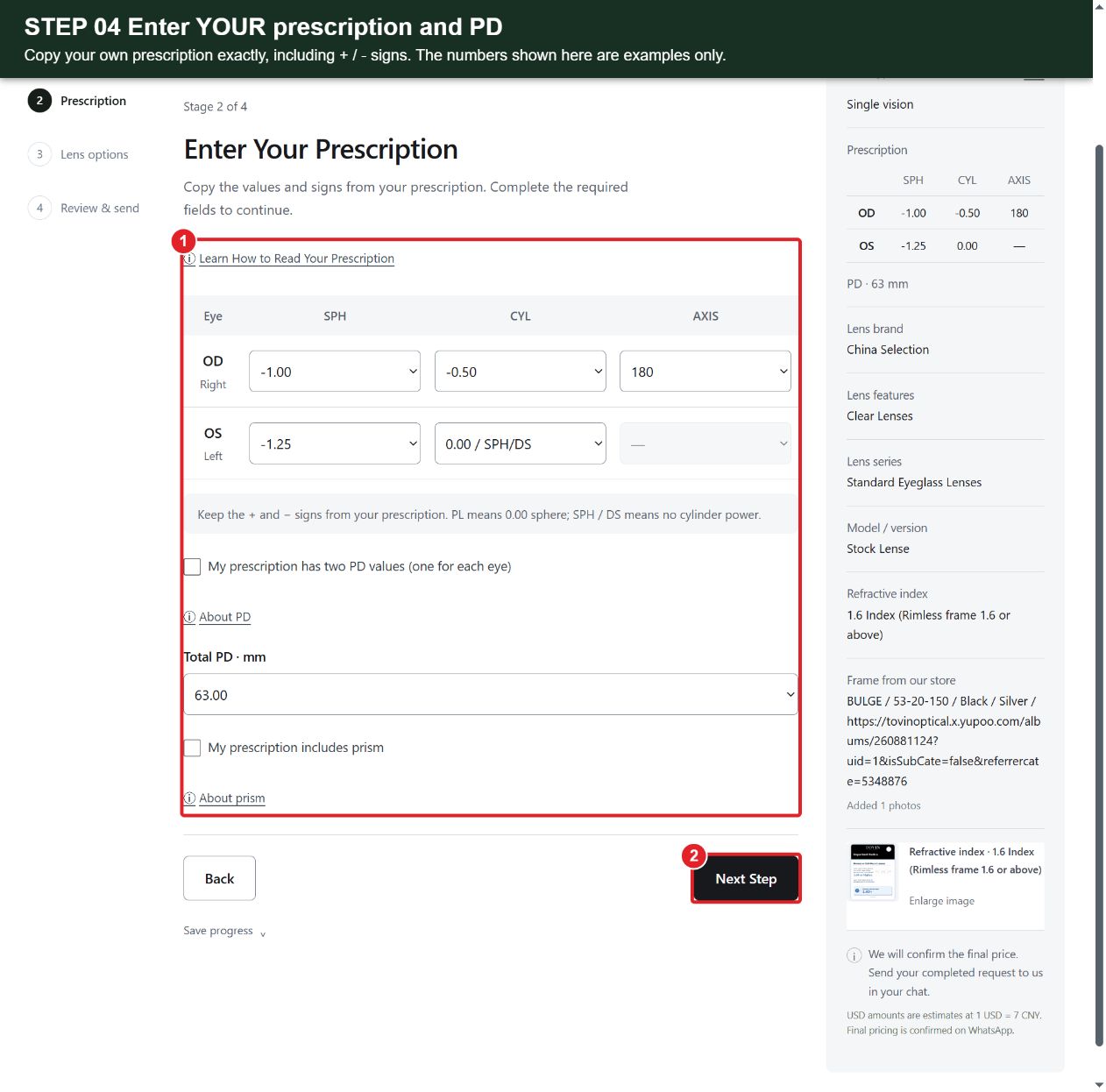 ↓ Follow the numbered red highlights. Open the image to zoom in.
05Choose a lens brand
Select a brand and click Next Step. This example uses China Selection. Choose based on your own requirements; brands shown are not interchangeable recommendations.
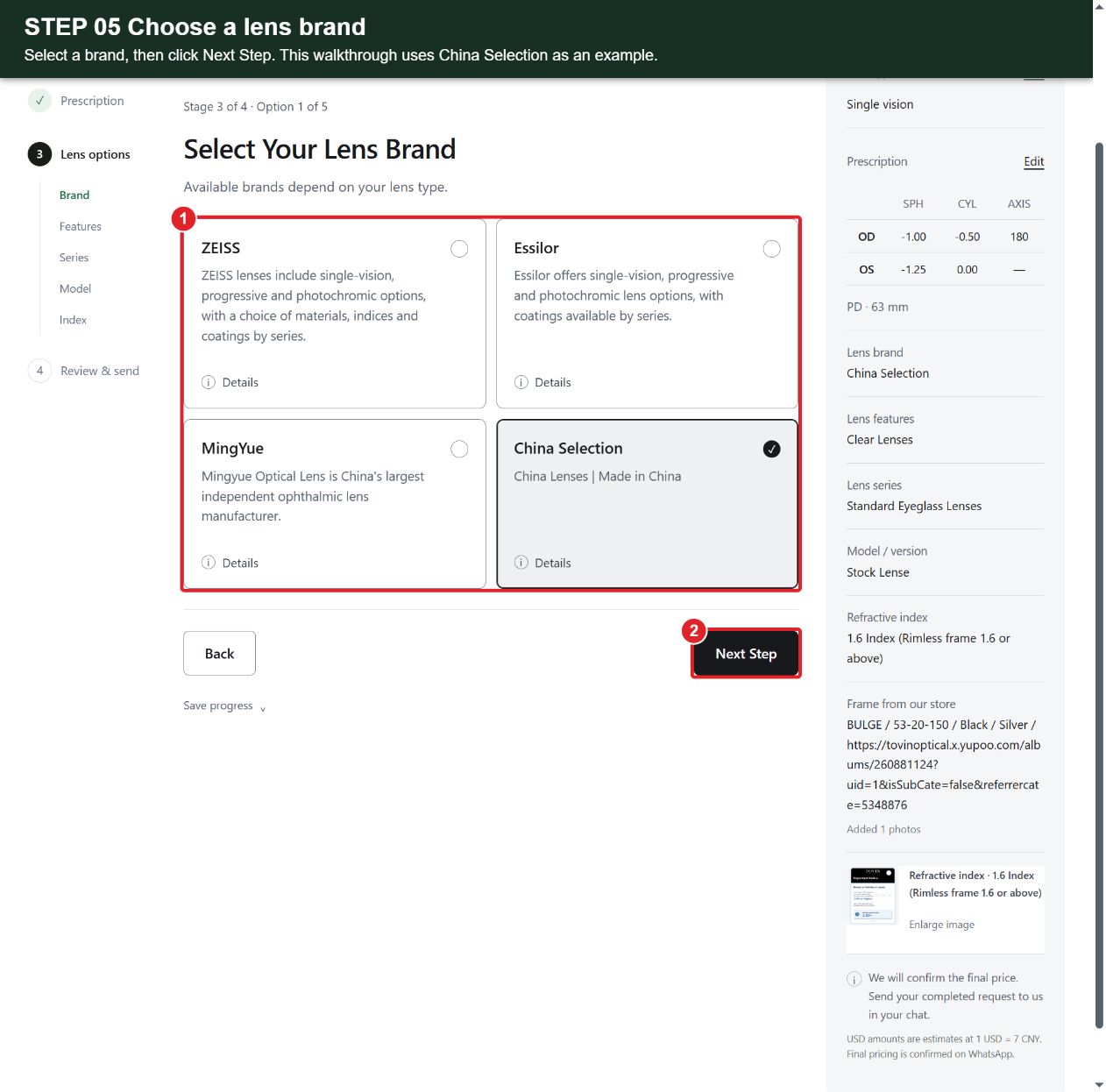 ↓ Follow the numbered red highlights. Open the image to zoom in.
06Choose lens features
Select an available feature such as Clear Lenses or Photochromic lenses. Details opens the explanation. Click Next Step after selecting.
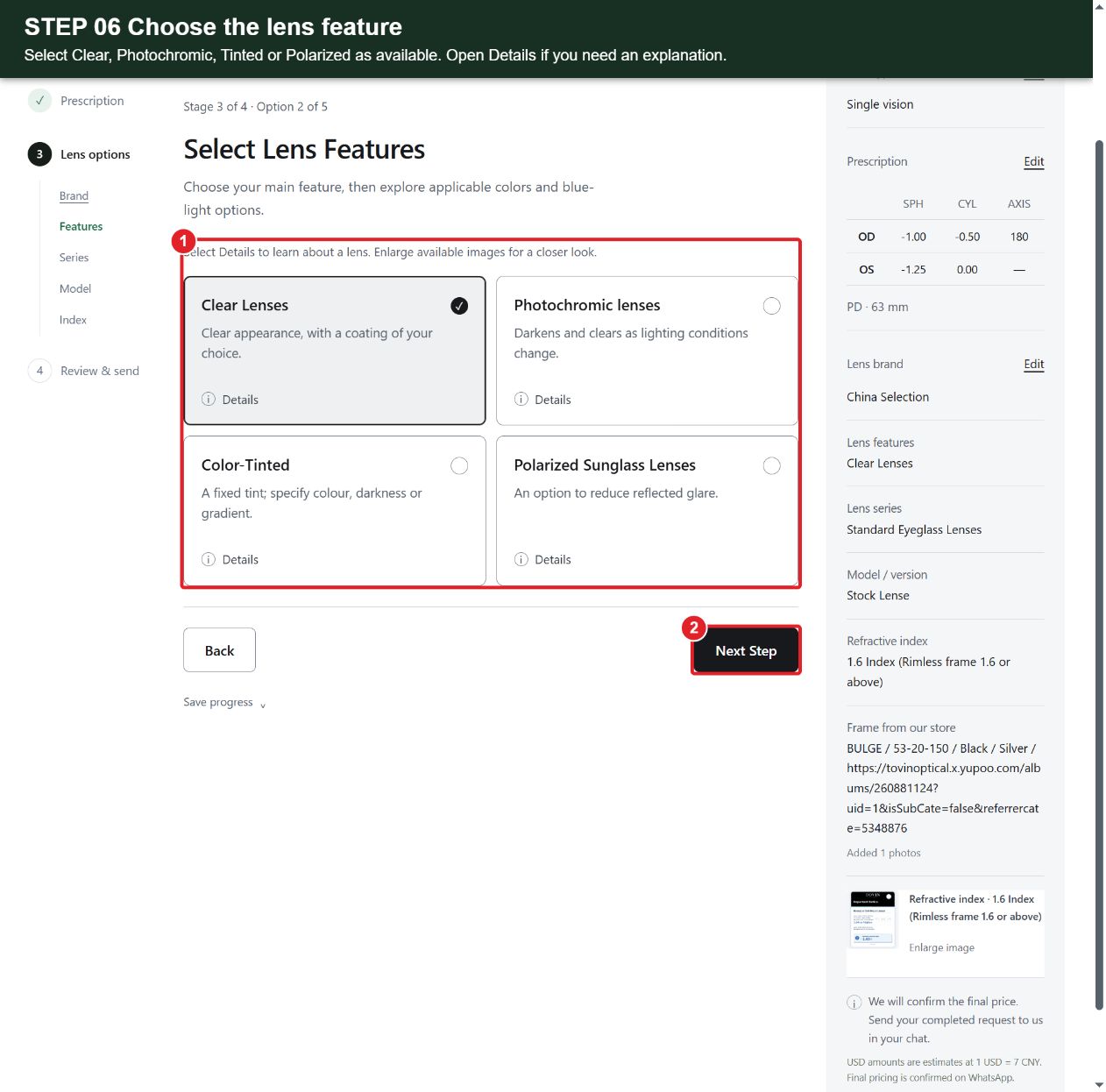 ↓ Follow the numbered red highlights. Open the image to zoom in.
07Choose a lens series
Select the series you want, then Next Step. The choices depend on the brand and feature selected in the previous steps.
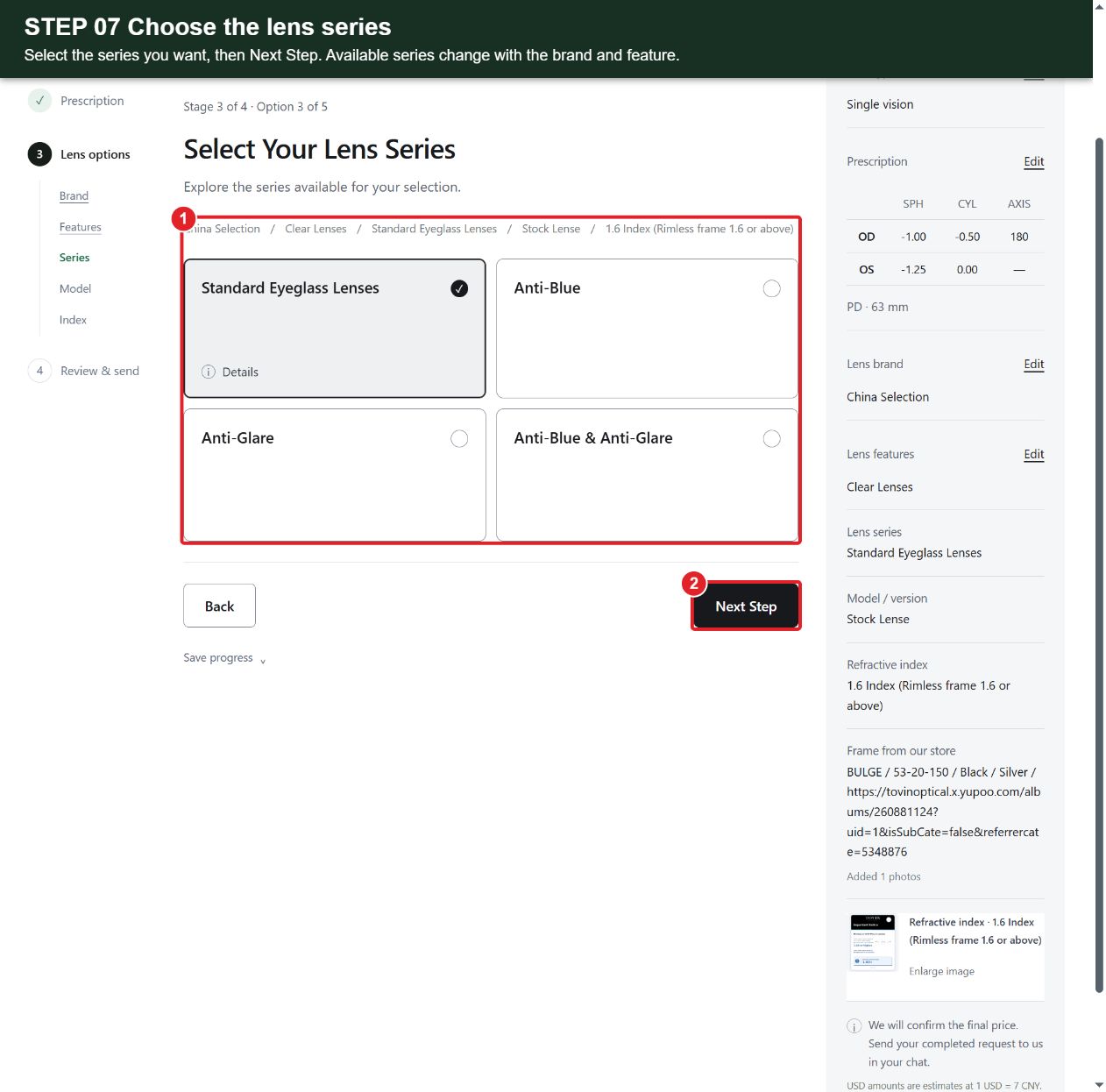 ↓ Follow the numbered red highlights. Open the image to zoom in.
08Choose the model or version
Select an available lens model and click Next Step. Some combinations also show a coating step: choose the available coating and continue. This example has no separate coating choice.
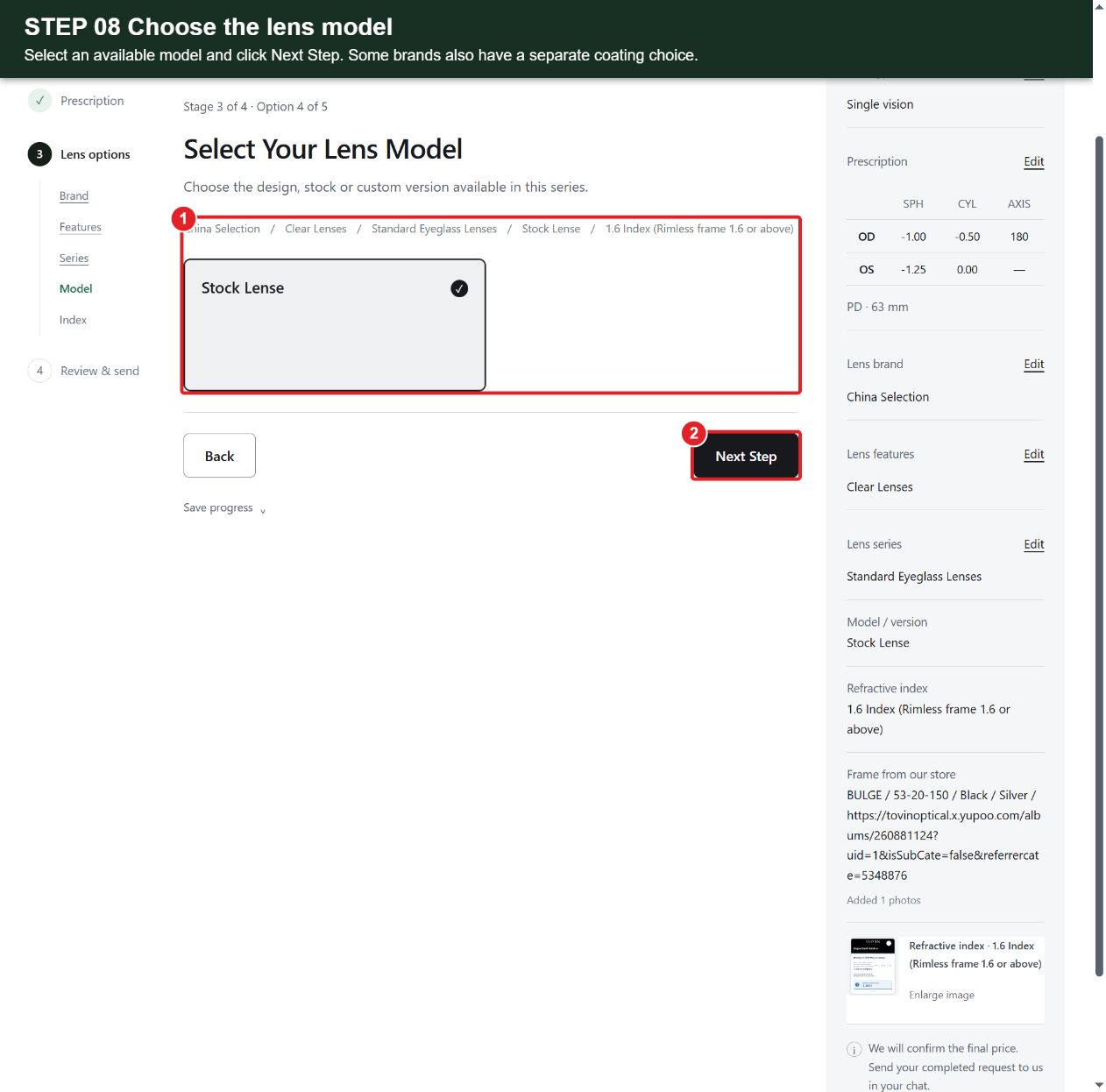 ↓ Follow the numbered red highlights. Open the image to zoom in.
09Choose the refractive index
Select an available index, then Next Step. Read the product notes and ask our team to confirm suitability if needed, especially for rimless frames.
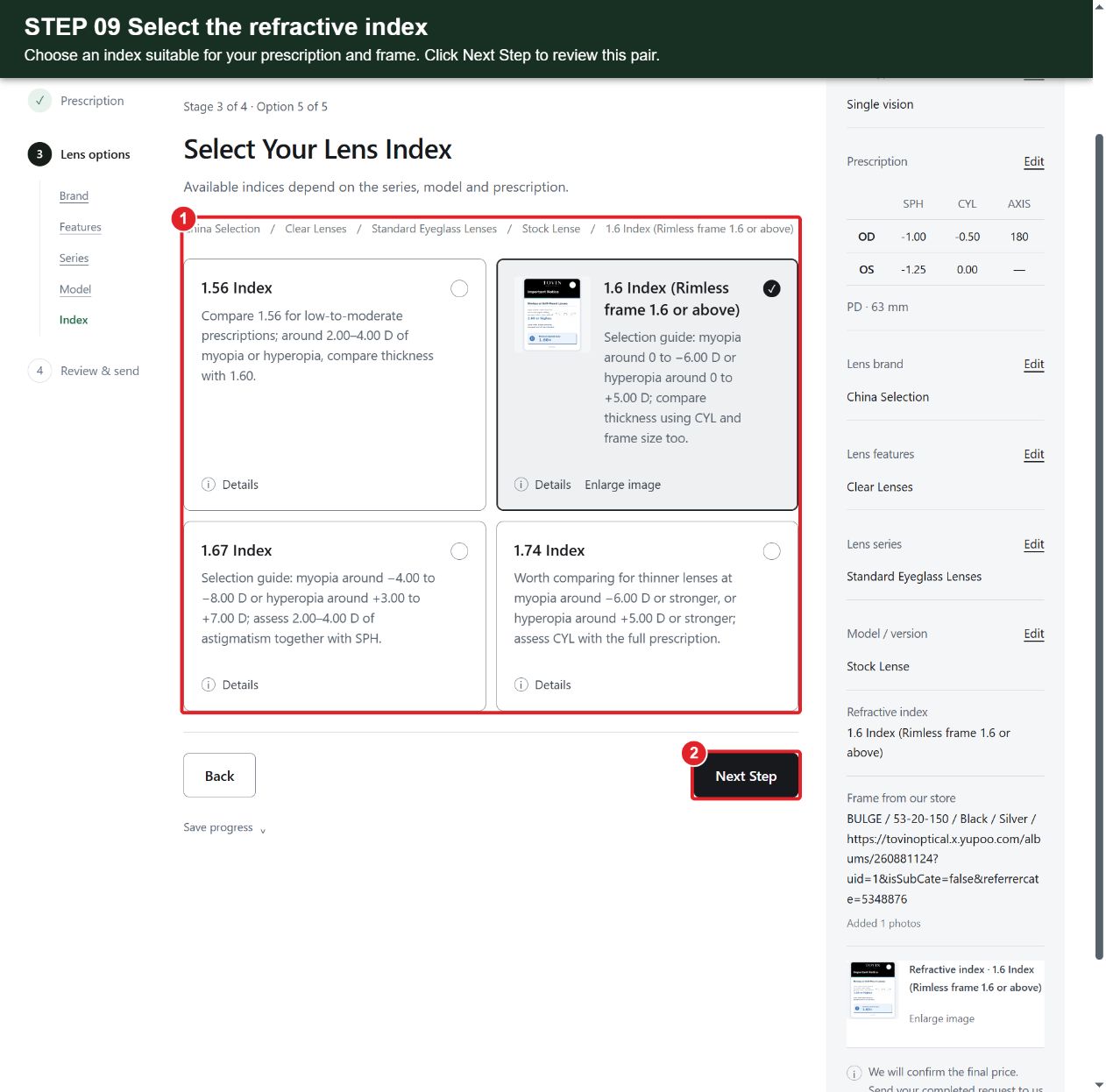 ↓ Follow the numbered red highlights. Open the image to zoom in.
10Review the prescription and lens estimate
Check both eyes, PD, lens brand, feature, series, model and index. Use Back or an Edit link to correct a selection. Displayed prices are estimates until confirmed by our team.
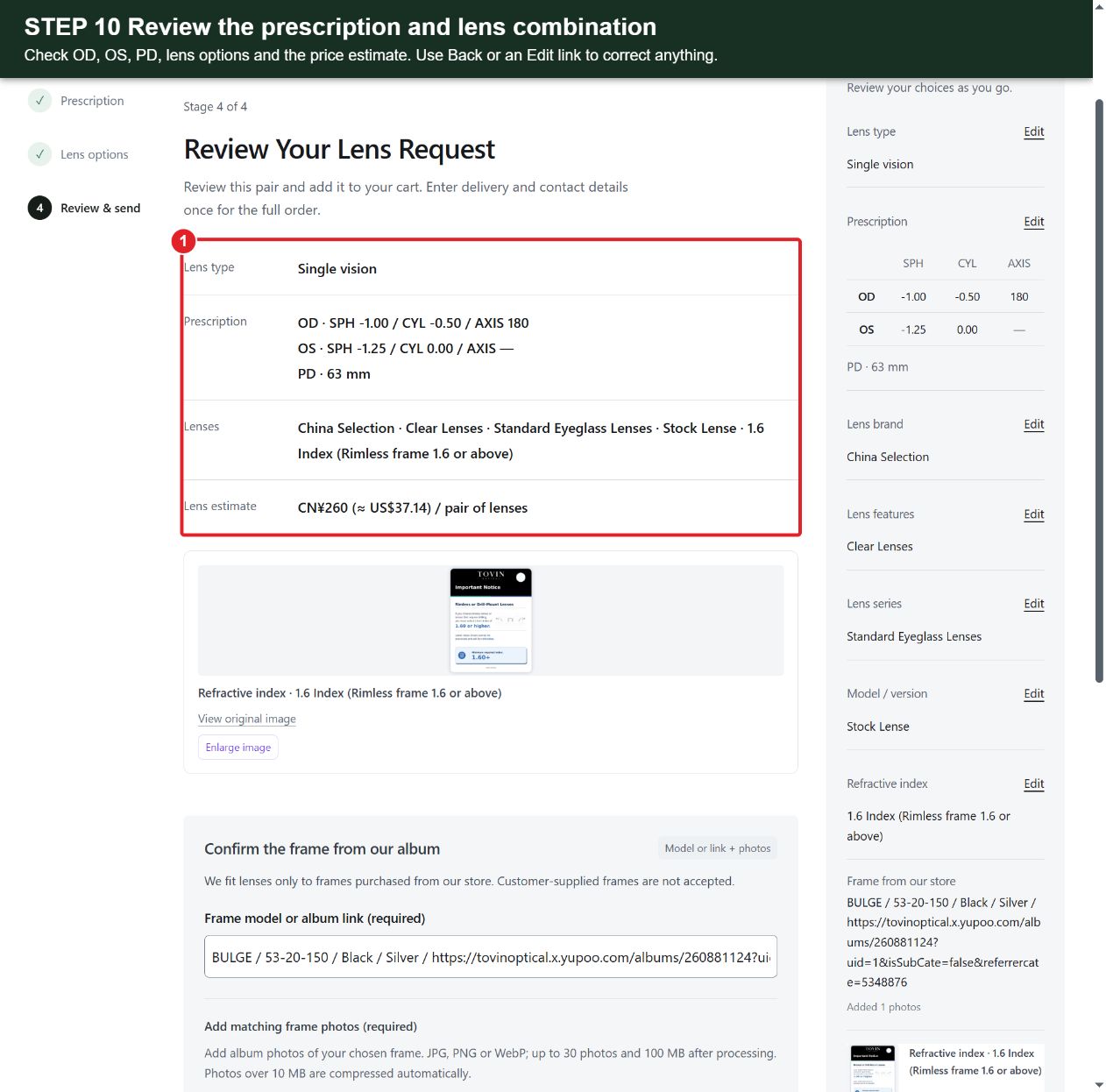 ↓ Follow the numbered red highlights. Open the image to zoom in.
11Confirm the frame and add this pair
Scroll down and check the frame model, colour and matching photo. Listed frames carry their reference photo into the request. Review everything, tick the confirmation box, then Add to cart. When editing an existing cart item, the button reads Save cart changes. Repeat the selection process for any other pair that needs a different prescription.
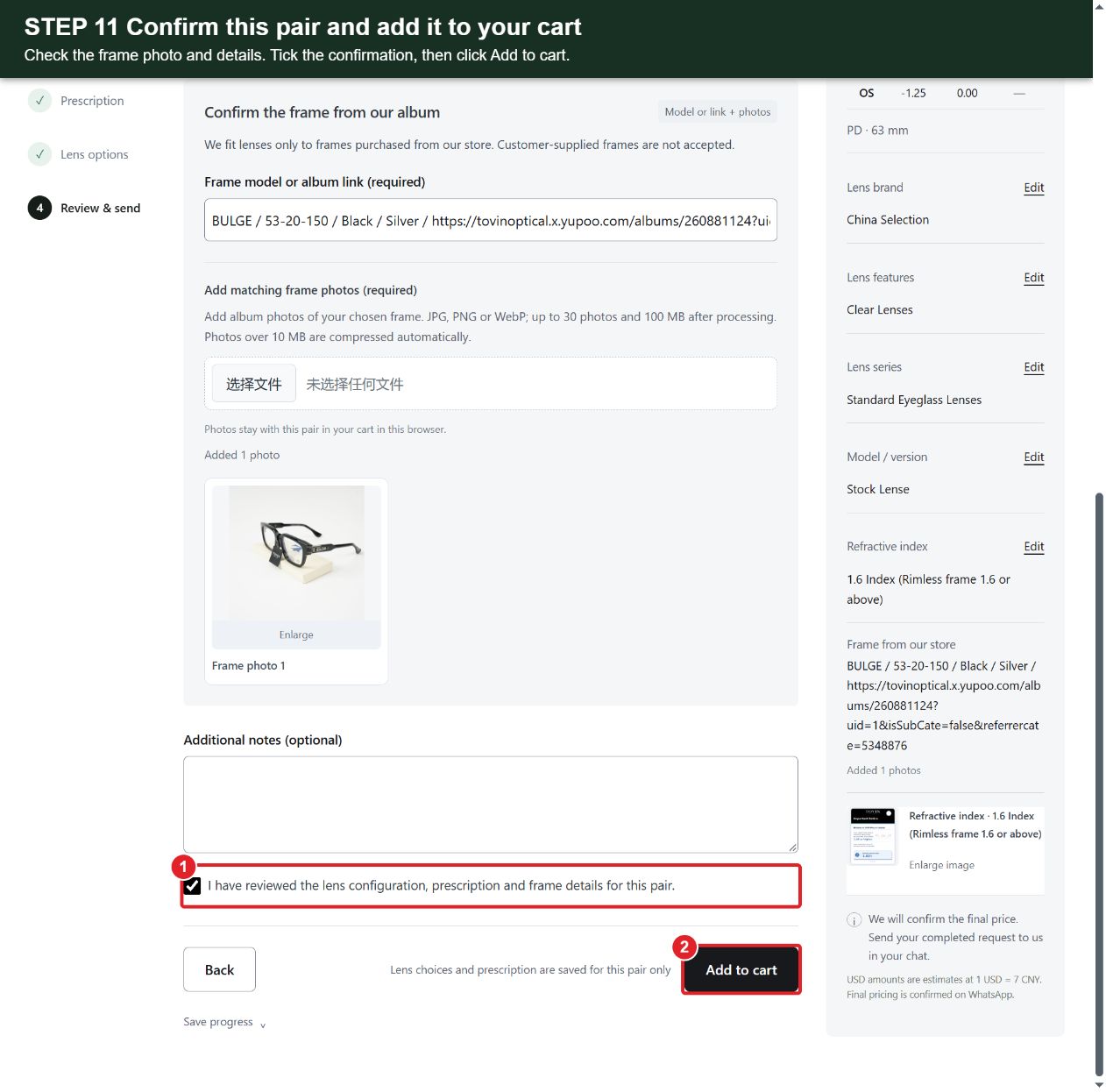 ↓ Follow the numbered red highlights. Open the image to zoom in.
12Review the cart and select services
Review every cart item. Use Edit lenses & prescription to change a pair. Select any optional services you need. Each selected service is charged once for the entire order, not once per frame; multiple services can be selected together. Scroll down to see all seven services.
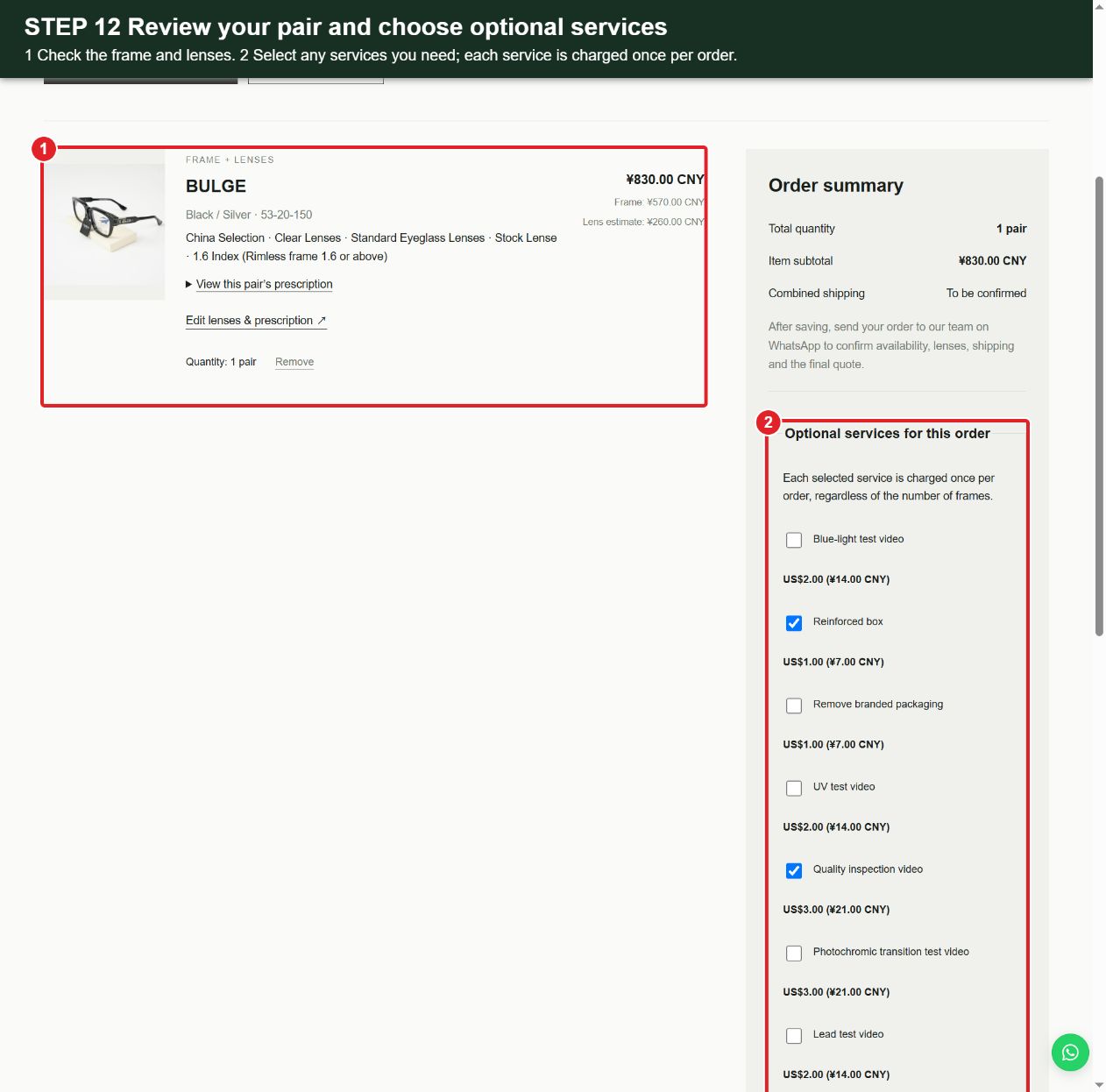 ↓ Follow the numbered red highlights. Open the image to zoom in.
13Review optional shipping protection
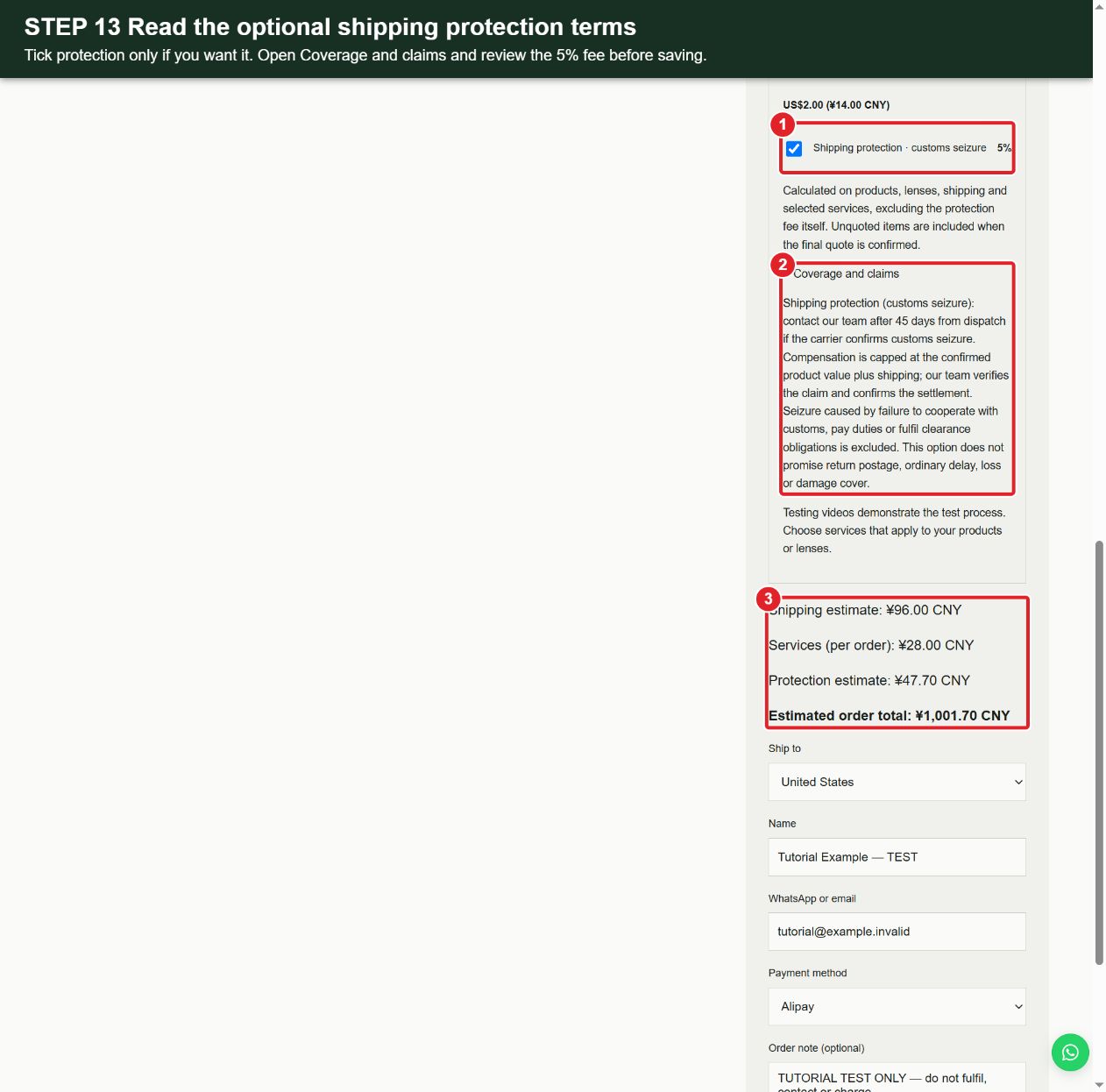
Read Coverage and claims before selecting shipping protection. The current fee is 5% of products + lenses + shipping + selected services, excluding the protection fee itself. Unquoted items are included when the final quote is confirmed. The option concerns confirmed customs seizure; see the displayed terms for exclusions and claim timing.
 ↓ Follow the numbered red highlights. Open the image to zoom in.
14Enter destination and contact details
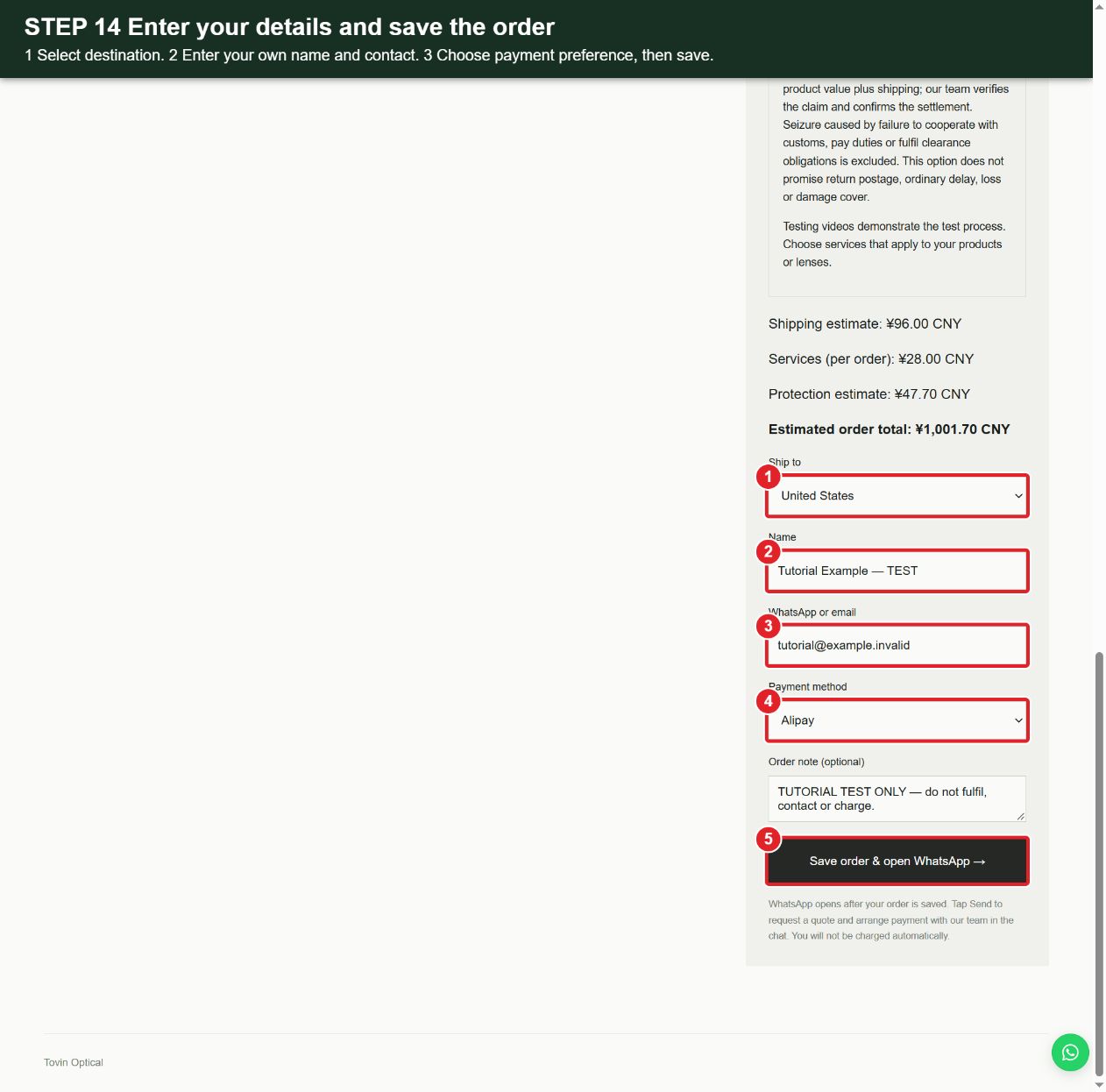
Choose Ship to, enter your own name and WhatsApp number or email, and choose the displayed payment preference. Add any order notes, then Save order & open WhatsApp. Only currently supported destinations are listed. The example contact information shown is test data. Saving does not take payment.
 ↓ Follow the numbered red highlights. Open the image to zoom in.
15Send your order message on WhatsApp
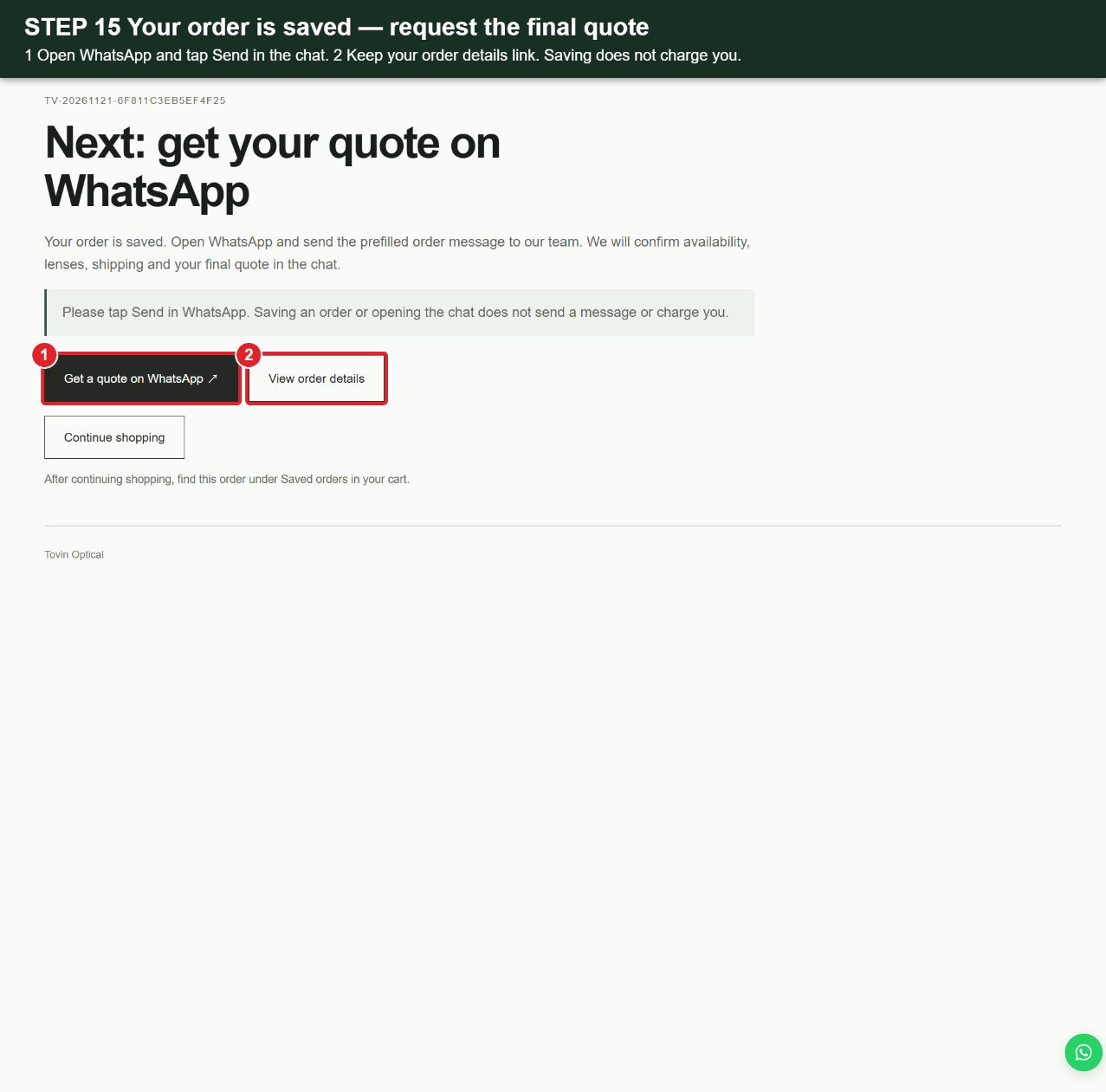
After saving, WhatsApp opens with your order message. Tap Send in the chat so our team receives it. If it does not open, use Get a quote on WhatsApp on the saved-order page. Keep View order details for your records. Opening a chat alone does not send the message.
 ↓ Follow the numbered red highlights. Open the image to zoom in.
16Review the saved order
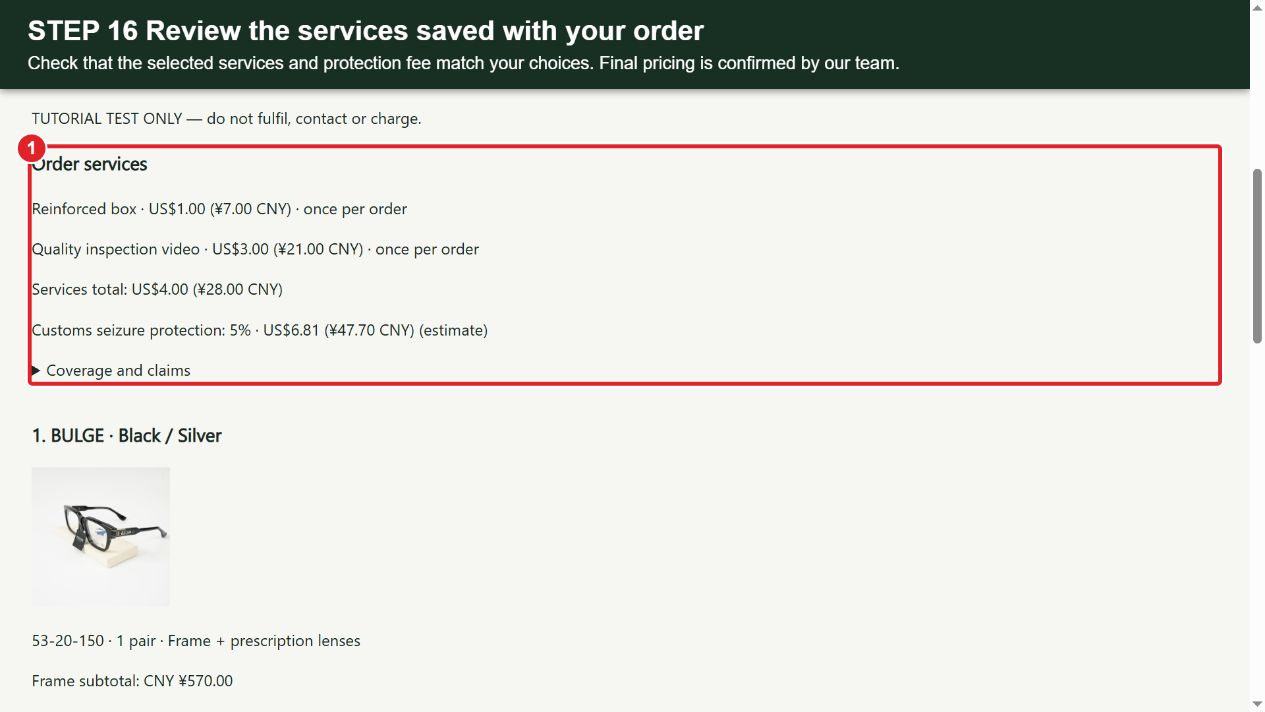
Open View order details. Check your contact details, destination, payment preference, ordered items and selected services. Our team confirms availability, lens suitability, shipping and the final total with you in WhatsApp. Arrange payment only after that confirmation. The website does not automatically charge the selected payment method.
 ↓ Follow the numbered red highlights. Open the image to zoom in.
17Check the saved prescription and photos
Scroll through each pair’s saved prescription, lens configuration and reference photos. Keep the private order link safe. If you notice an error, contact our team with the order number before processing. This walkthrough ends at the real saved-order page; payment and fulfilment are coordinated with our team.
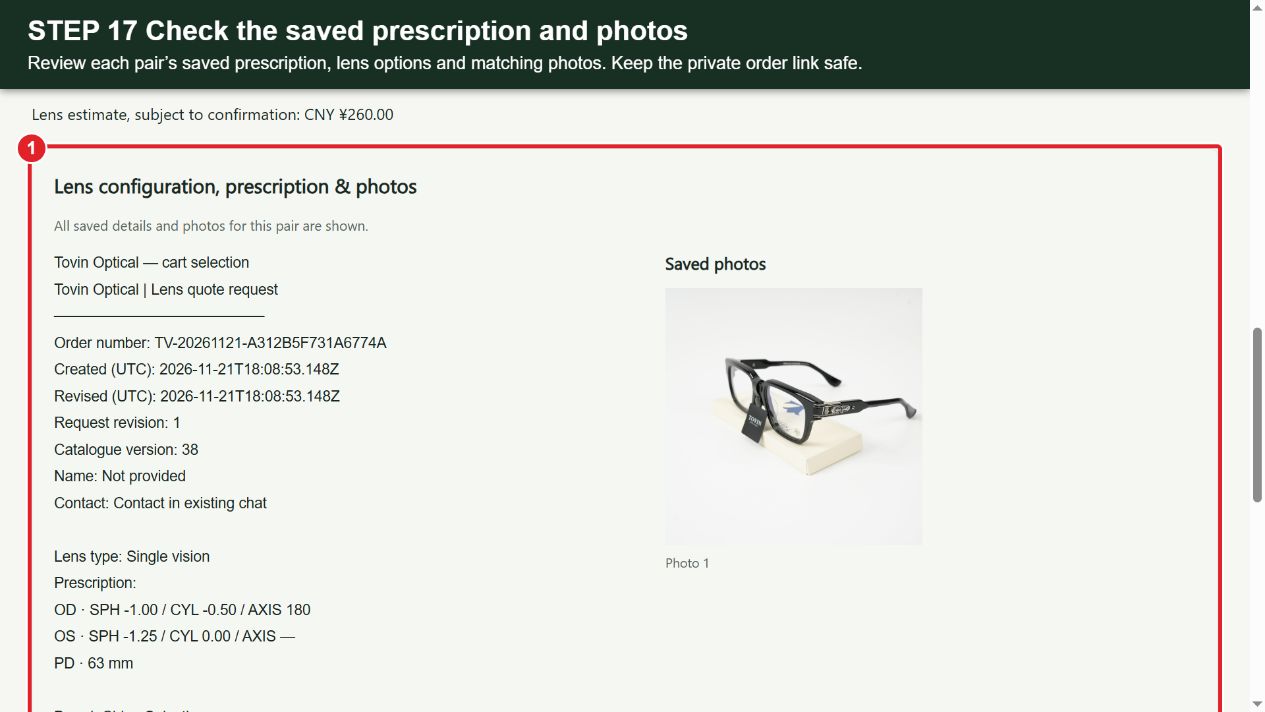 ↓ Follow the numbered red highlights. Open the image to zoom in.
Other ways to order
Frames only: choose Frame only in the product window, set the quantity and Add to cart. Skip the lens configuration steps and continue at step 12.
Accessories: choose an item from Accessories, select its option and quantity, then Add to cart. Accessories do not enter the prescription-lens flow.
A frame from our album that is not listed: use Order an unlisted frame. Provide the model or working album link and matching photos. Choose frame only or frame + lenses. Our team confirms the frame price and availability.
More than one prescription: configure and add each pair separately so its own prescription stays attached to it.
Start choosing your frames →